Parental control needs real system access to work. Here's every permission Raxak asks for, what it actually does, what it can and cannot see, and how to grant it on your phone brand.
Measures time spent per app — the foundation of all reports and limits
Accessibility
Child
Required
Instant app detection, the block screen, web filtering — the "Safety Shield"
Display over other apps
Parent (optional on child)
Recommended
Shows reminders and block screens when Accessibility isn't on
Battery exemption
All devices
Recommended
Stops the battery saver from killing protection in the background
Tamper protection
Child only
Recommended
Blocks uninstalling Raxak without the family PIN
Notifications
All devices
Optional
Alerts for parents, status and reminders for children
The honest summary: Raxak sees which apps are used, for how long, and which websites are visited on the child's device. Parents can never read messages, see photos, or view the screen — and Raxak cannot take screenshots, record audio, or track location; it never asks for those permissions at all. (The optional harmful-content feature scans text on the child's device for danger signals only, and sends parents an alert — never the content.)
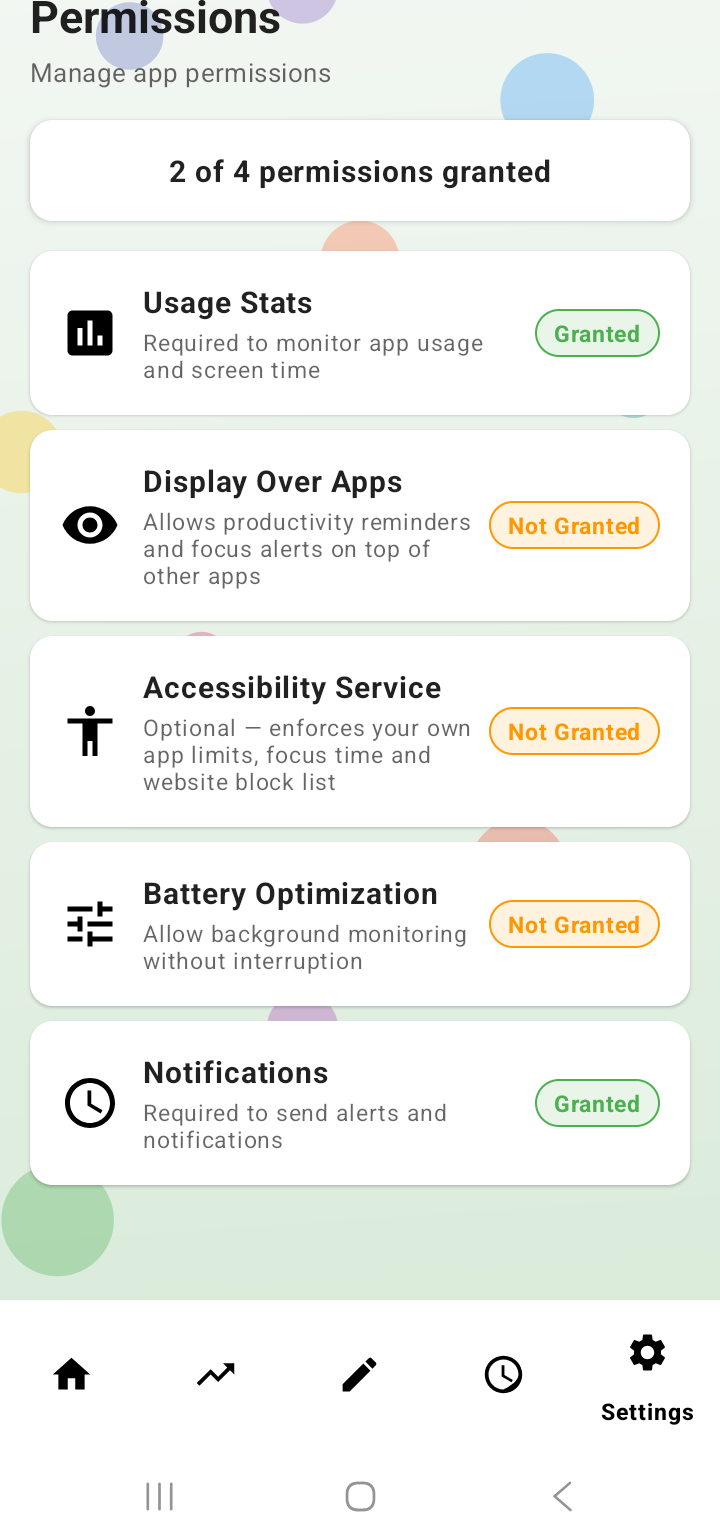
If a permission was skipped or later switched off, open Settings → Permissions inside Raxak — it shows what's granted and takes you to the right screen to fix anything missing.
The in-app repair hub: every permission with its live status — tap any row to fix it.
Required
Usage Access
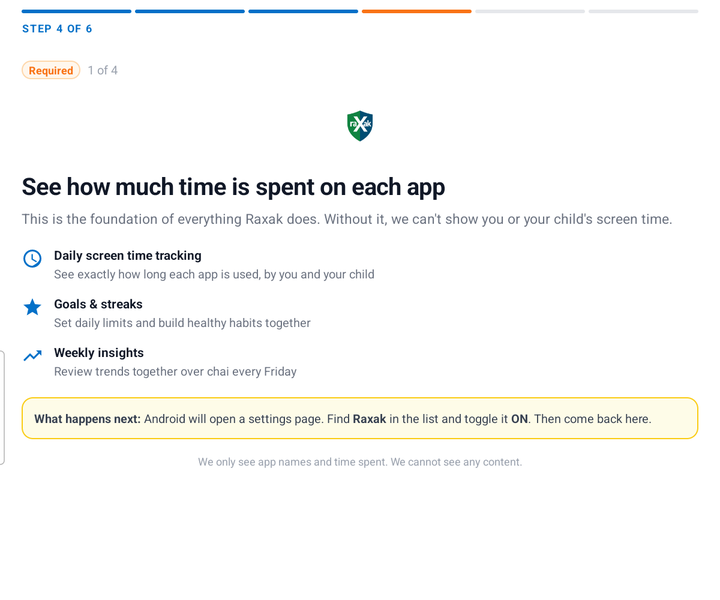
What it does: lets Raxak read Android's built-in per-app usage statistics — how much time is spent in each app. This powers screen-time totals, reports, trends, and time limits. As the app puts it: "We only see app names and time spent. We cannot see any content."
How to grant it
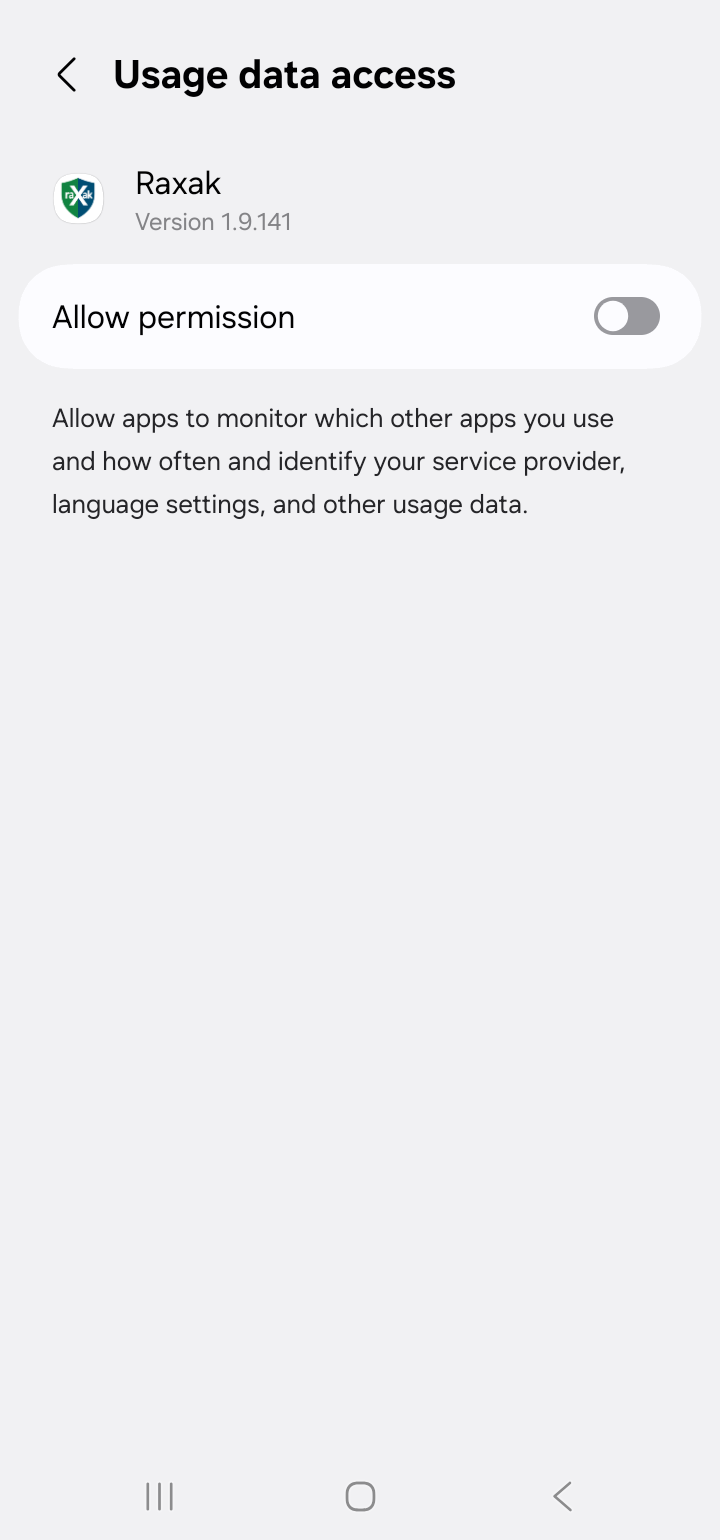
Raxak opens the Usage access settings screen for you during setup.
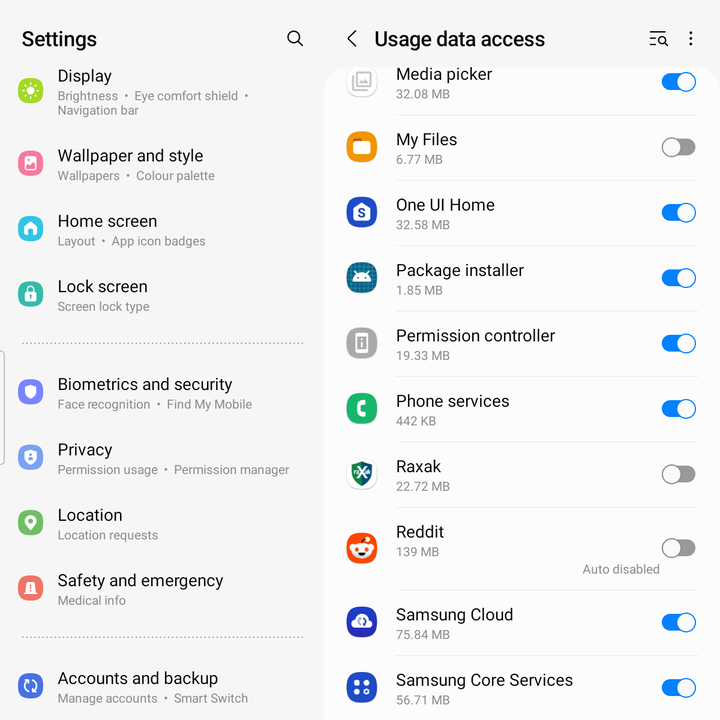
Find Raxak in the list, tap it, and turn on Allow usage access.
Manual path: Settings → Apps → Special app access → Usage access. (Samsung: Settings → Security and privacy → More security settings → Usage data access.)
The app explains the permission first — app names and time only, never content.On most phones Raxak deep-links straight to its own toggle — just switch it on.If you land on the full list instead, scroll to Raxak and turn it on.
If it's off
Screen-time measurement stops silently — the dashboard shows no new data. Re-grant it any time from Settings → Permissions inside the app. The first grant also backfills up to the last 7 days from the phone's own records.
Required on child devices
Accessibility — the "Safety Shield"
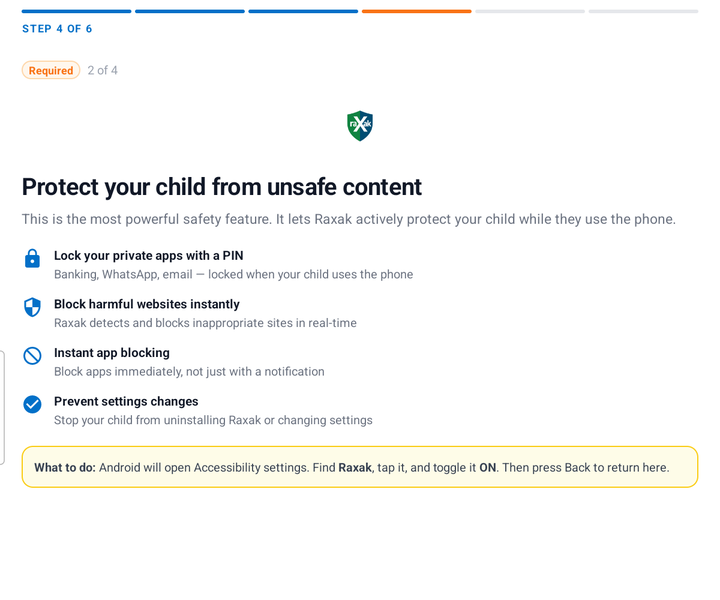
What it does: this is the enforcement backbone on a child's device. It lets Raxak know instantly which app is in the foreground (so blocks apply immediately, not seconds later), draw the block screen, and read the browser's address bar for web filtering.
What it does not do: Raxak's accessibility service is not a keylogger. It does not store or send what your child types or chats, and it never records the screen. If you enable harmful-content alerts, text is scanned on the device itself for danger signals (self-harm, violence, drugs, severe abuse) — you receive only an alert, never the messages.
How to grant it
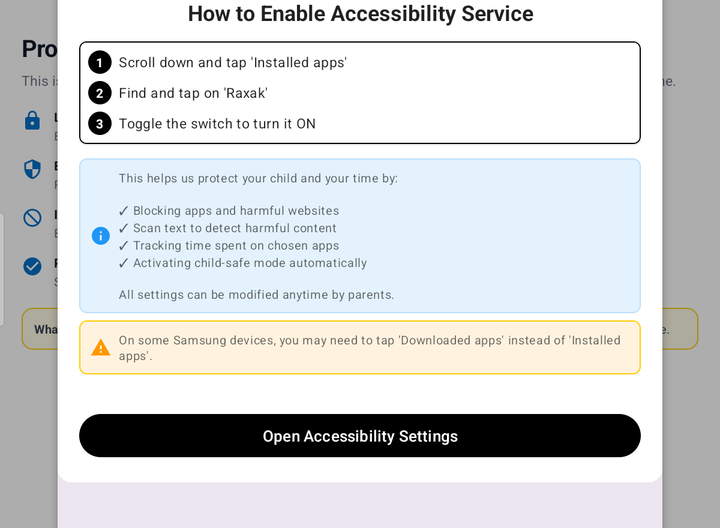
During child setup, Raxak shows the steps for your exact phone brand, then opens Android's Accessibility settings.
Find Raxak — usually under "Installed apps" or "Downloaded apps" (Samsung), "Special features" (Xiaomi/MIUI), or "Smart assistance" (Huawei).
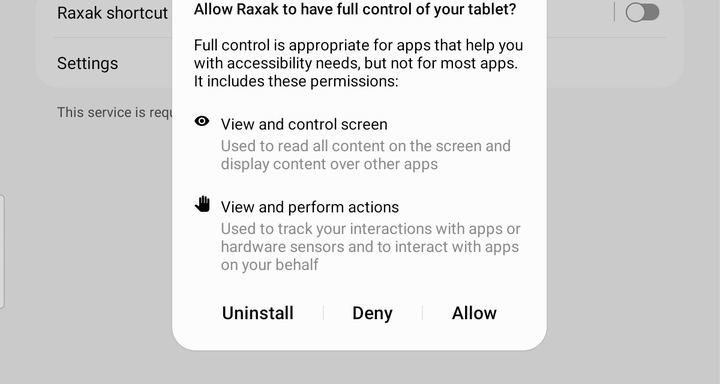
Turn it on and confirm the system dialog.
The Safety Shield explainer on the child's device.Raxak shows the exact steps for your phone brand before opening Android's settings.Android's consent dialog — tap Allow. This is standard for all parental-control apps.
If your child turns it off
Raxak detects it instantly. You get a critical alert on your phone ("Protection disabled"), the child's phone shows a persistent "Enable Now" notification until it's restored, and when it comes back you're told how long the device was unprotected. In the meantime blocking falls back to a reduced mode: app detection is slower, blocks appear as overlays or reminders instead of instant full screens, and web filtering pauses until it's re-enabled.
On a parent's own phone Accessibility is optional — it makes your own limits "stick" with gentle full-screen pauses, but Usage Access alone is enough for reports.
Recommended
Display over other apps
What it does: lets Raxak draw its screens on top of other apps — block screens, pause reminders, and focus-session covers. On parent phones it powers scroll alerts and "pause & think" moments; on child phones it's the fallback blocker when Accessibility is off.
How to grant it
Raxak opens the right screen during setup; toggle Allow display over other apps for Raxak.
Manual path: Settings → Apps → Special app access → Display over other apps.
The #1 reliability fix
Battery optimization exemption
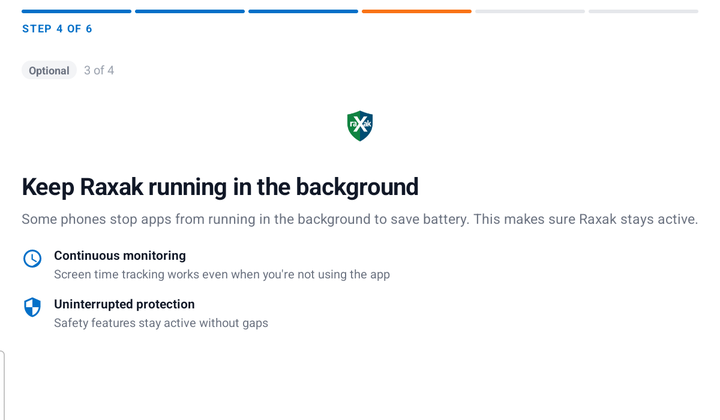
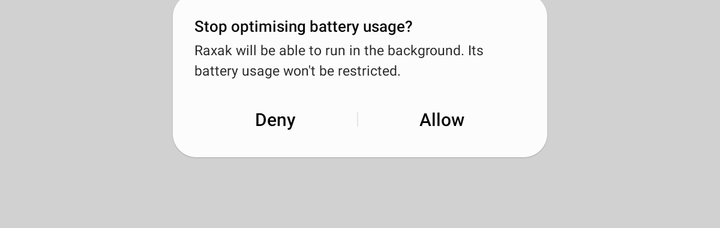
What it does: tells Android not to put Raxak to sleep in the background. Without it, aggressive battery savers — especially on Xiaomi, Redmi, Oppo, Vivo, Realme, OnePlus, Huawei and Honor — can stop protection and then refuse to let it restart until the app is opened again.
If that ever happens, Raxak notices and tells you: you'll see a "Protection Interrupted" alert naming the device and how long protection was off, and it resolves once background running is allowed.
The battery step during setup — skippable, but strongly recommended.Android's confirmation — tap Allow so protection can restart itself.
How to grant it
During setup, allow the "Ignore battery optimization" request.
On aggressive brands, also enable Autostart and lock Raxak in Recents — see the brand guides below.
Child devices only
Tamper protection (Device Admin)
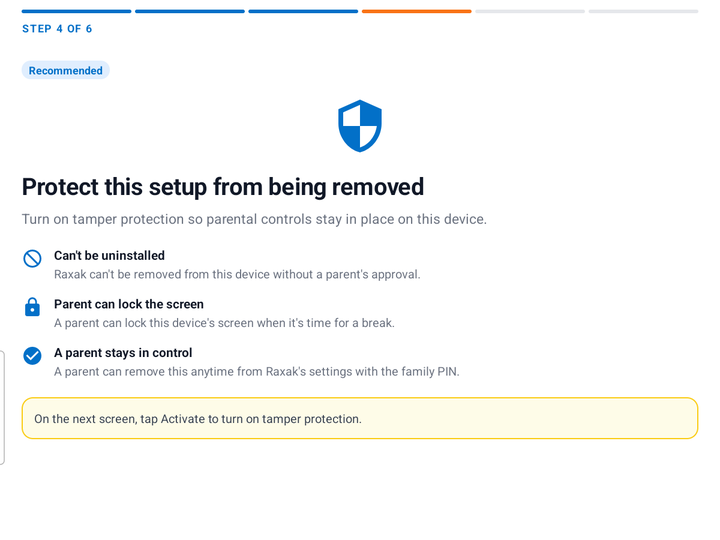
What it does: registers Raxak as a device administrator on the child's phone so the app cannot be uninstalled without deactivating it first — and deactivating it requires your family PIN.
If it's removed without the PIN (Android always allows removal via system settings), you get an immediate "Tamper Protection Removed" alert, and the child's phone shows a persistent notification asking to turn it back on. PIN-authorized removal by you is silent — no false alarms.
How it's granted
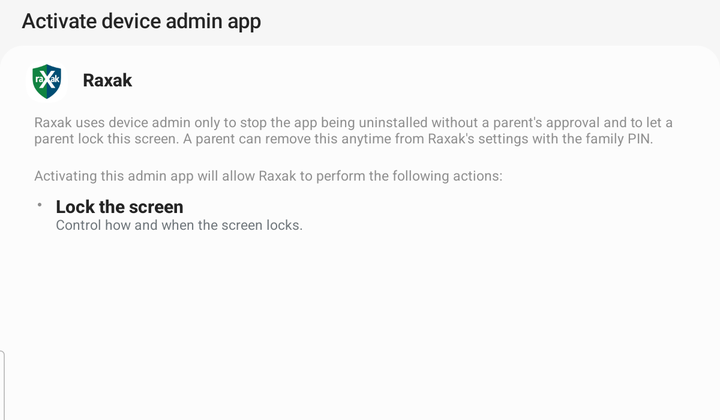
During child setup, Raxak shows a clear disclosure of what device admin can do, then opens Android's activation screen.
Tap Activate. That's it — Raxak uses it only to resist uninstalling and to enforce bedtime/limit locks.
The tamper-protection explainer — can't be uninstalled, parent can lock the screen, removable with the family PIN.Android's activation screen shows Raxak's own plain-language disclosure. Tap Activate.
Transparent by design: your child sees a system warning explaining that removing protection notifies you. Raxak resists tampering — it never hides.
Optional
Notifications
On Android 13+ apps must ask to show notifications. On your phone they carry safety alerts (protection disabled, new app installed, limit reached). On the child's phone they show protection status and gentle reminders. Skippable — you can always check the app manually.
Brand-specific
Keep Raxak alive on your phone brand
Some manufacturers ship battery savers that kill background apps regardless of Android's standard settings. If Raxak stops reporting or protection keeps switching off, do all three steps for your brand — battery, autostart, and lock in Recents. ("Recents" is the recent-apps screen you get by swiping up and holding, or tapping the square/☰ button.) Menu names vary slightly by model and OS version; the app also shows steps for your exact device during setup.
Lock in Recents: Recents → ⋮ on the Raxak card → Lock
App launch: Settings → Battery → App launch → Raxak → switch off "Manage automatically", then enable Auto-launch, Secondary launch, and Run in background
Lock in Recents: Recents → pull down on the Raxak card to lock it
Stock Android is far less aggressive — the standard exemption is usually all you need.
Our promise
No ads. Ever.
Raxak will never show your family an advertisement. We've removed Android's advertising ID from the app entirely, so there is nothing to profile, retarget, or sell — your family's data funds nothing. Raxak is paid for by subscriptions, not by your attention.