Raxak is parent-first: you set up your own phone, see it working, then connect your child's phone. Here's the whole journey, step by step.
Get it from the official Play Store listing โ Raxak is never distributed as a sideloaded APK.
Use your phone number (you'll receive a one-time code by SMS) or Google Sign-In. There's no email/password to remember.
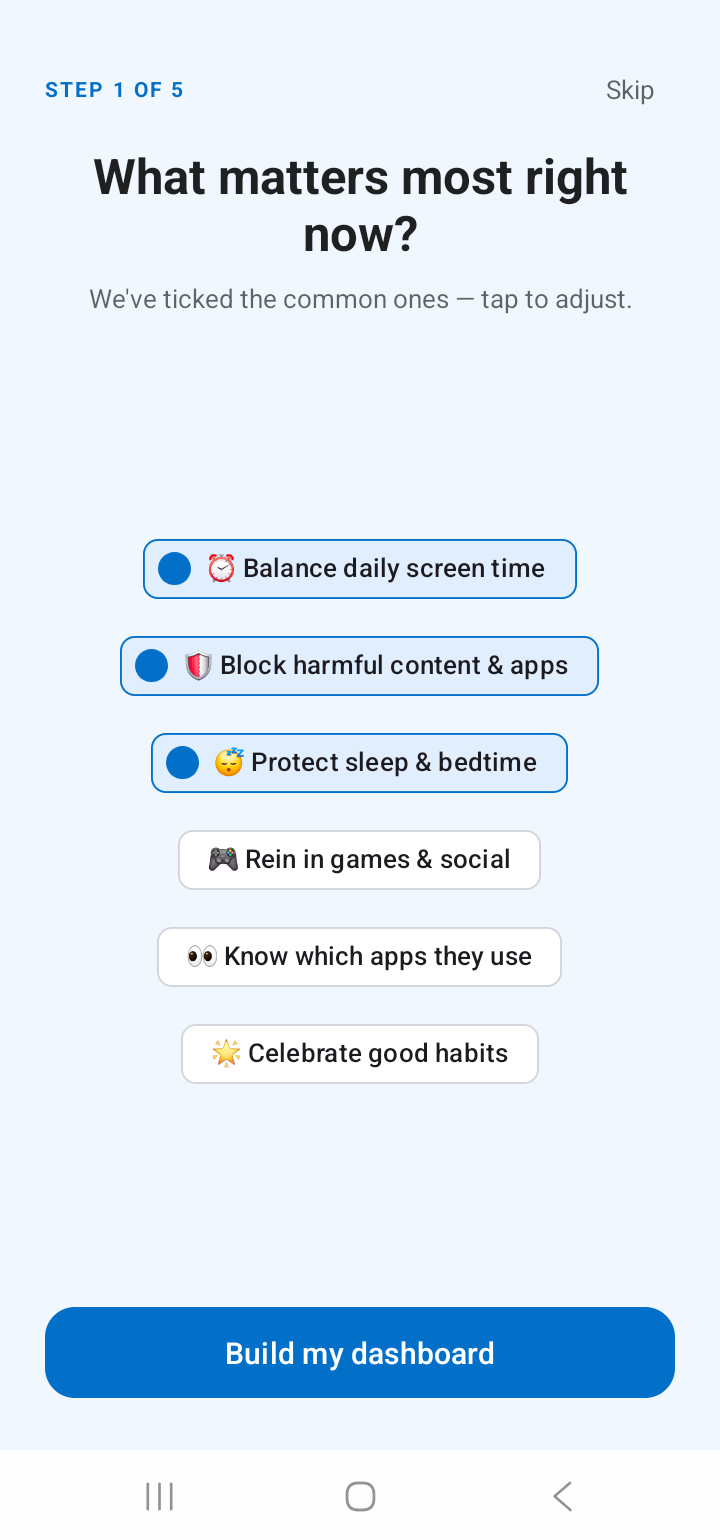
Choose what matters most โ balancing daily screen time, blocking harmful content, protecting sleep, reining in games and social media, knowing which apps are used, or celebrating good habits. Common ones are pre-ticked; your picks shape your dashboard and setup plan. Every step here is skippable.
You'll see a sample of exactly what you'll get for your child โ wellness score, screen time, top apps, alerts. It goes live the moment their phone connects. Raxak only ever sees app names and time spent โ never messages or photos.
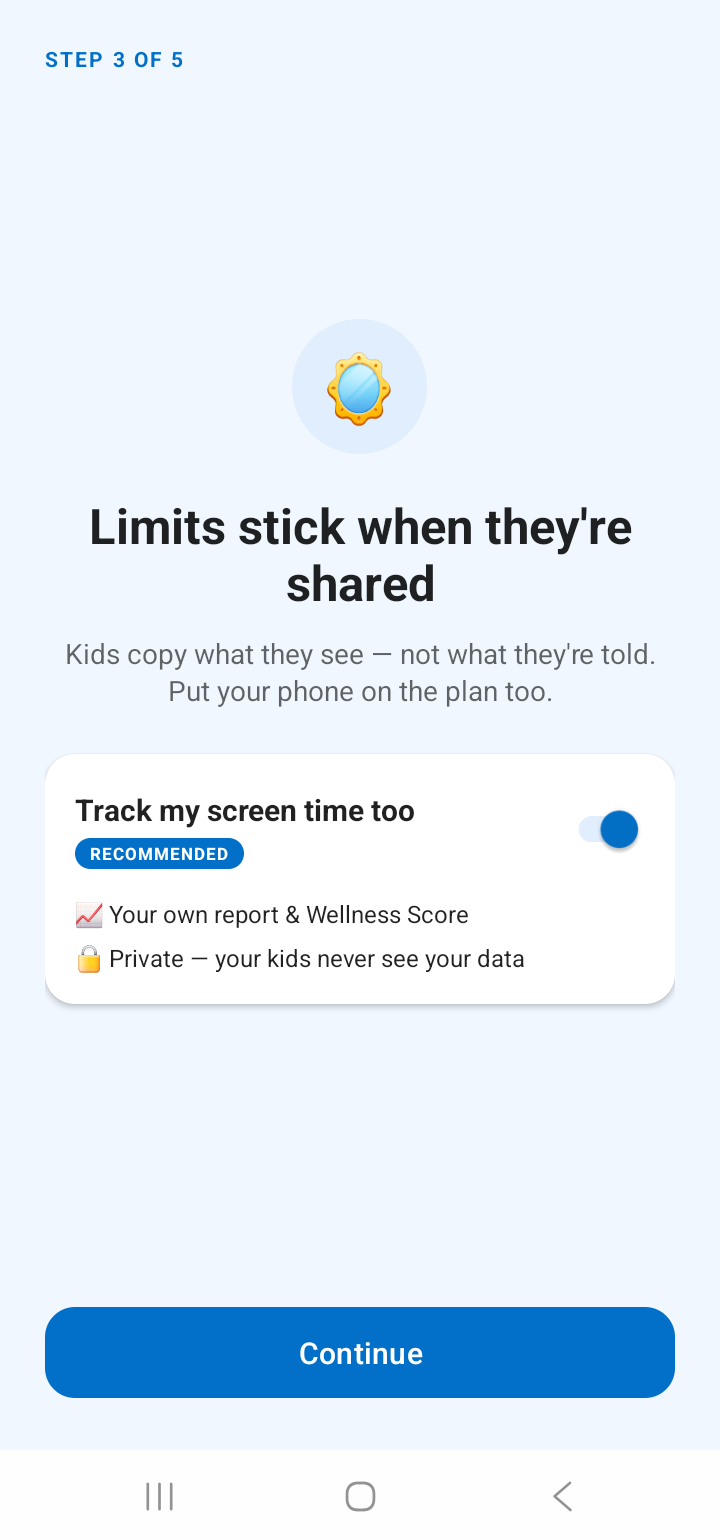
Limits stick when they're shared. If you opt in, Raxak asks for Usage Access on your phone and immediately shows your own last-7-days report โ so you see the product working before your child is even connected. Wondering why we ask? See Raxak for the whole family.
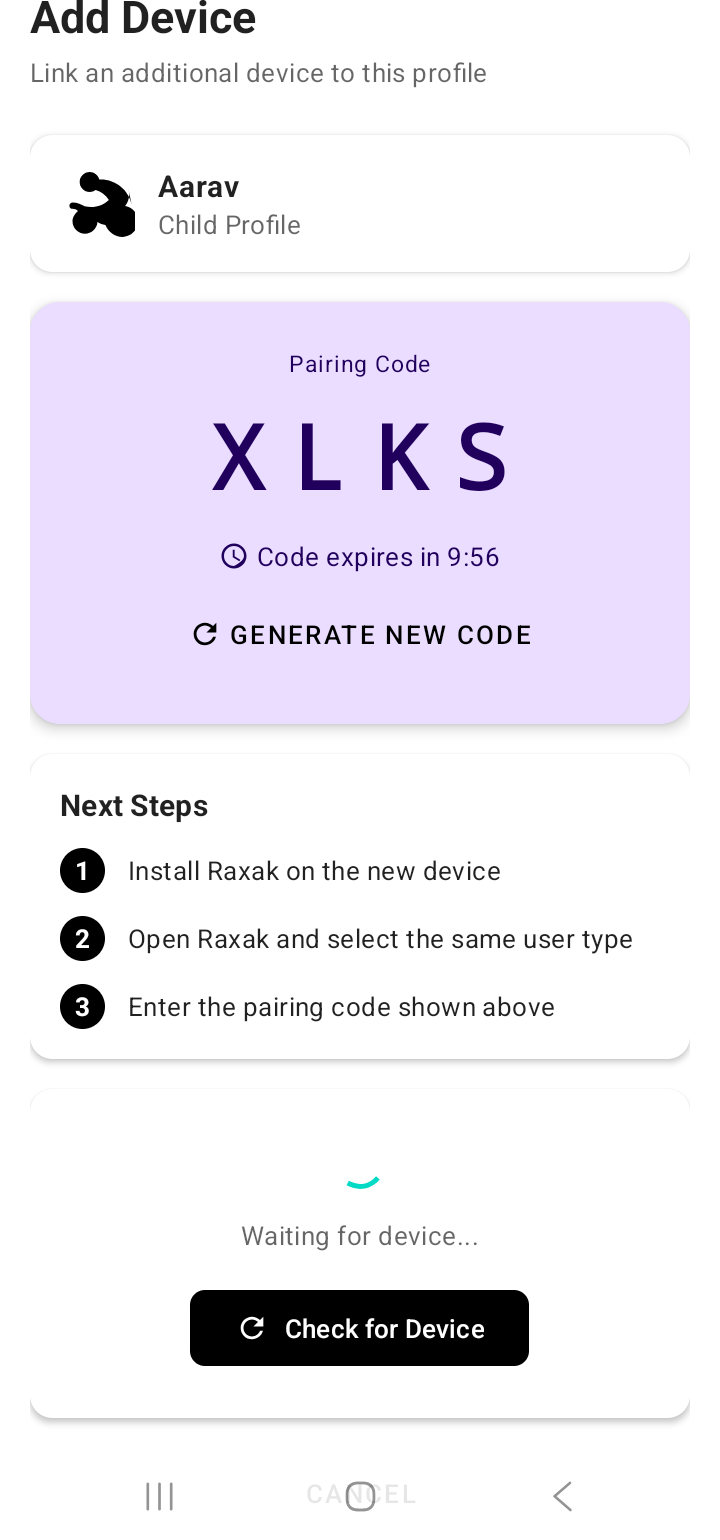
Pairing uses a short one-time code โ no account or password needed on the child's phone.
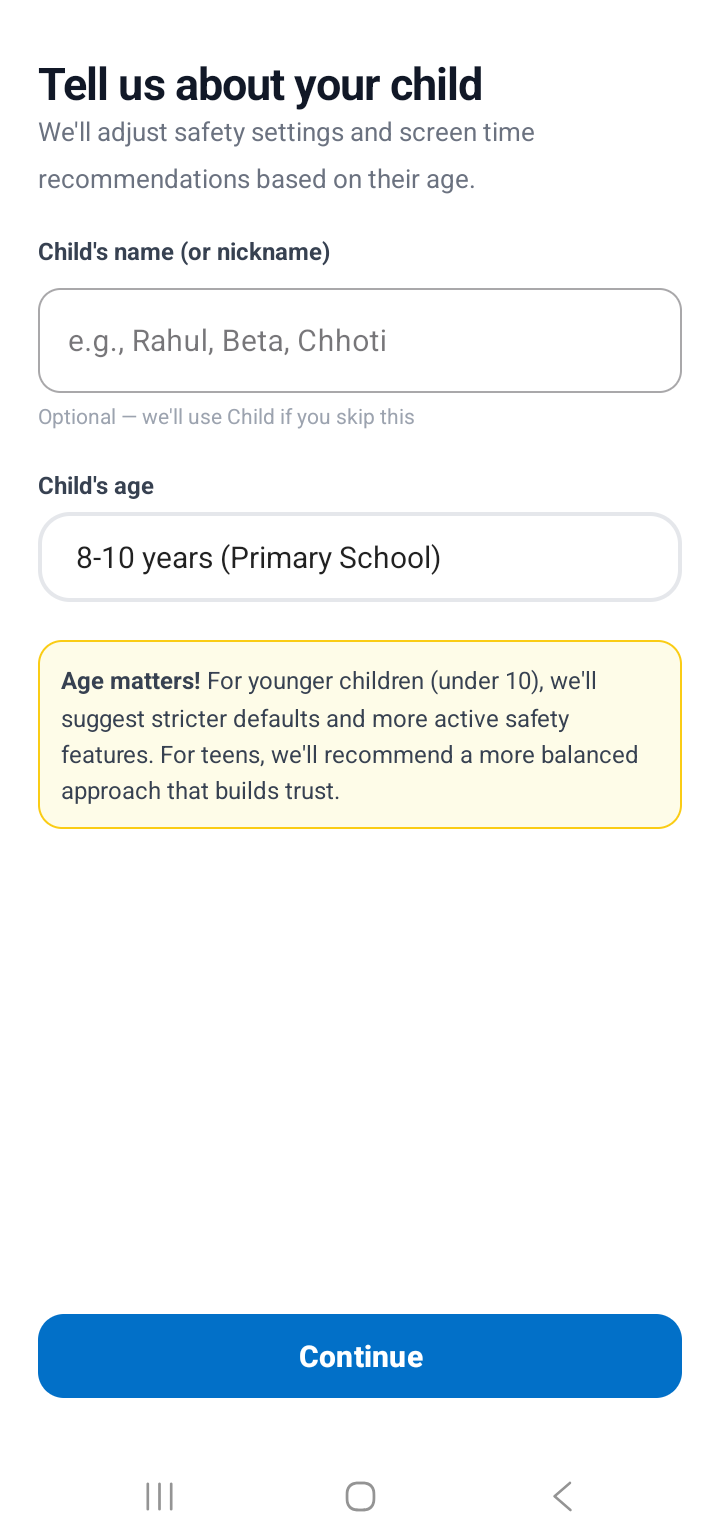
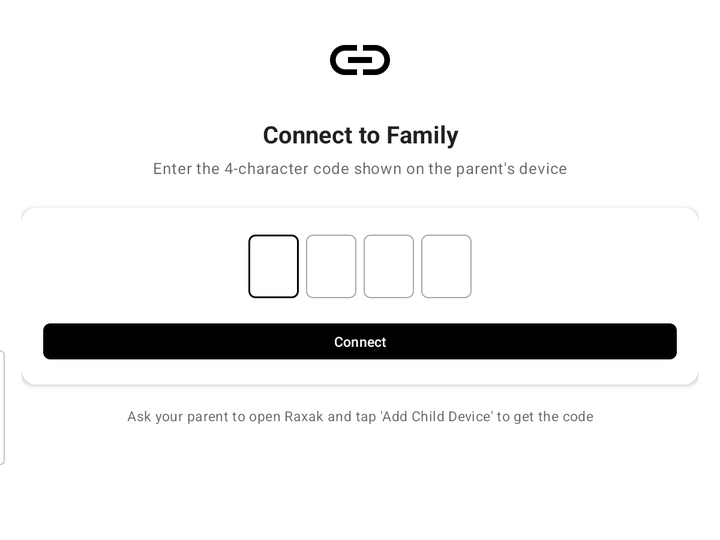
On your phone: Family โ Add child. Enter their name and age. Raxak shows a 4-character pairing code.
The code is valid for 10 minutes and refreshes automatically โ tap Refresh if it expires while you're getting the other phone ready.
Open Google Play on their device and install Raxak (there's a link on the pairing screen you can share).
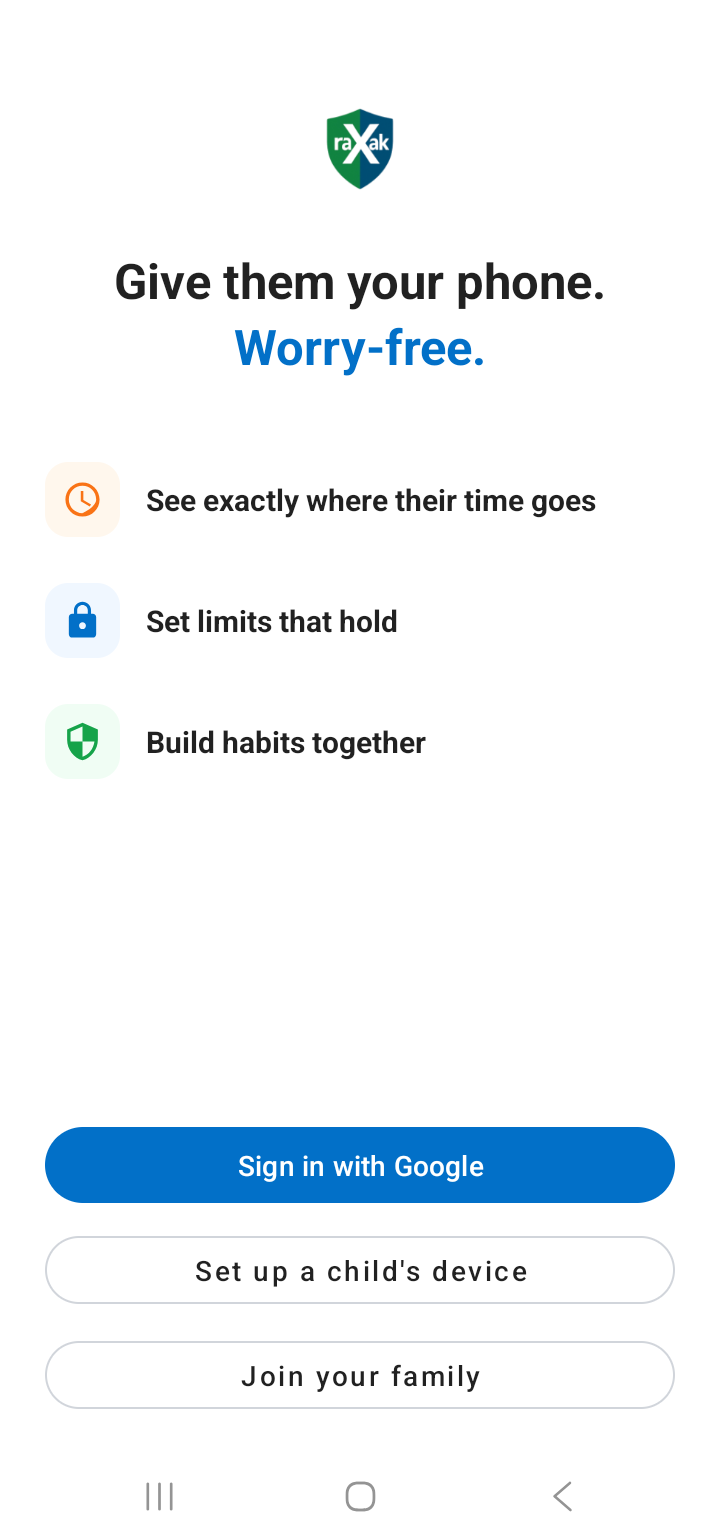
On the child's phone, on the sign-in screen, tap Child device, then type the 4-character code from your screen.
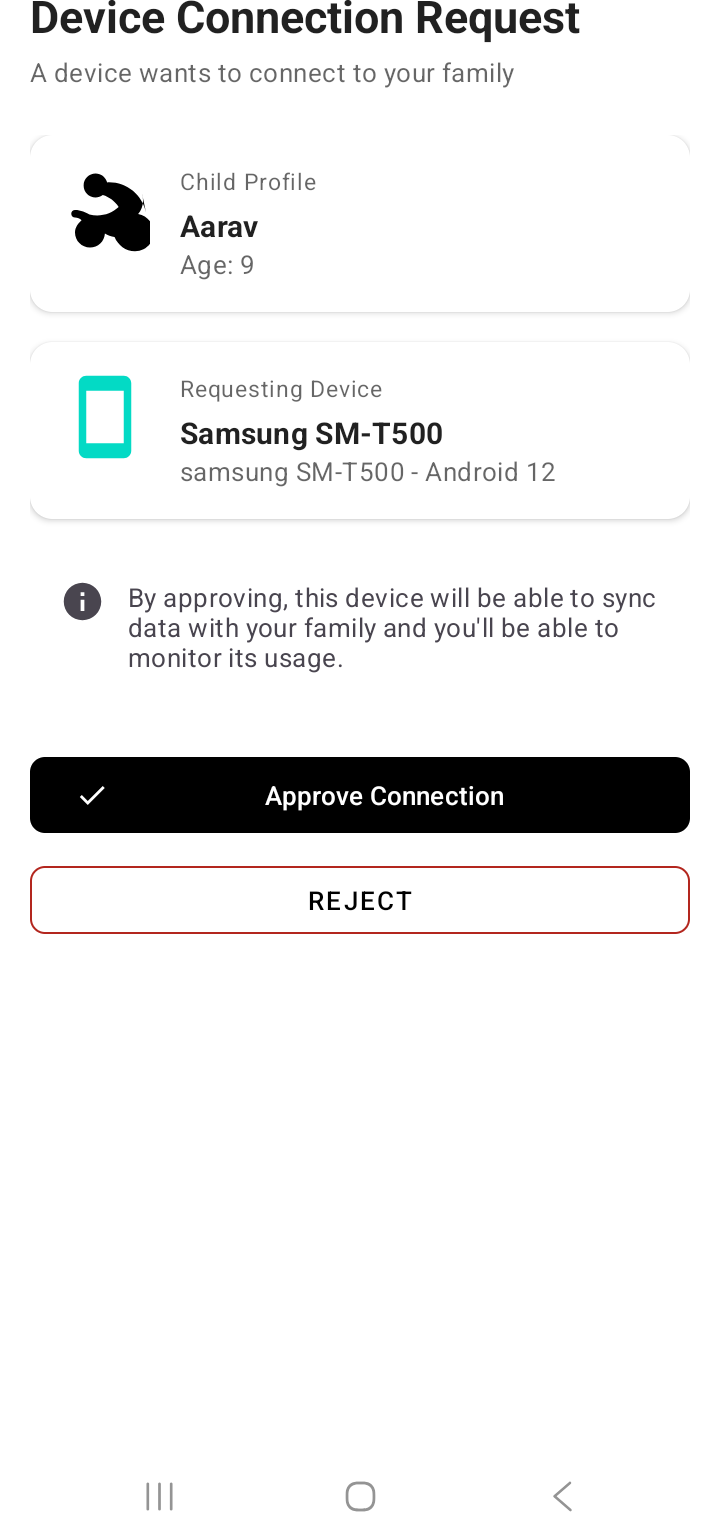
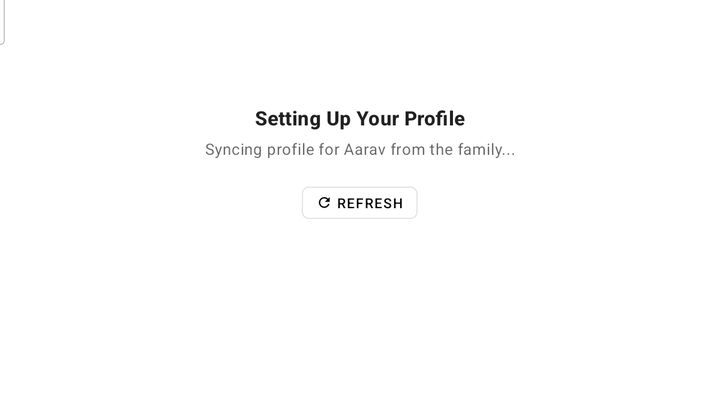
You'll see the pairing request appear on your device โ tap Approve. The child's phone shows "Connected!" and joins your family.
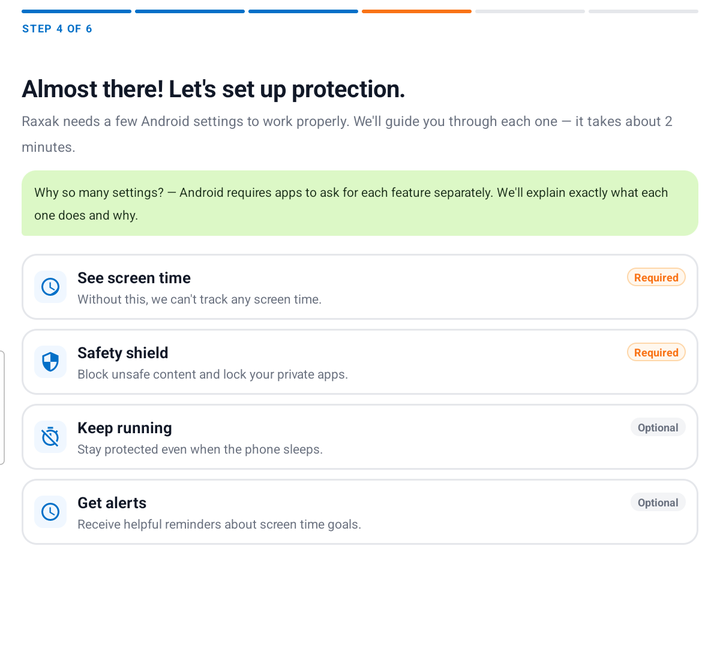
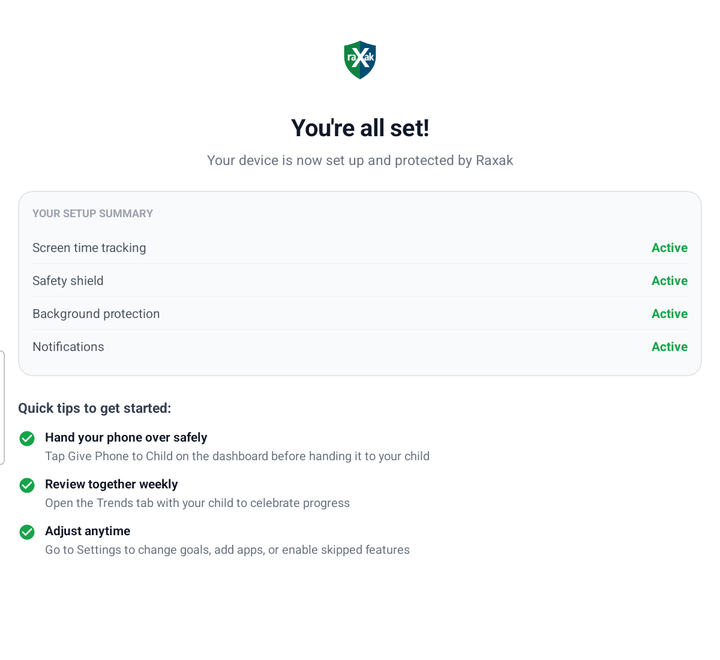
After pairing, the child's phone walks through each permission one screen at a time, and moves forward automatically as each is granted. In order:
Lets Raxak measure time spent in each app โ the foundation of everything. The app opens the exact settings screen; just select Raxak and allow.
Powers instant app detection, the block screen, and web filtering. The app shows steps for your exact phone brand before opening Android's Accessibility settings.
Stops the app from being uninstalled without your family PIN. Skippable, but strongly recommended for child devices.
Stops the phone's battery saver from switching protection off. On Xiaomi, Oppo, Vivo, Realme, OnePlus and Huawei this matters a lot โ see the brand-specific guide.
Lets the child see status and gentle reminders (like limit warnings) on their own device.
One more may come up later: "Display over other apps" โ Raxak asks for it inside the app when a feature needs to draw a reminder or block screen (mainly on the parent's phone). Just allow it when prompted.
Full details on every permission โ including what Raxak can and cannot see โ are in the Permissions Guide.
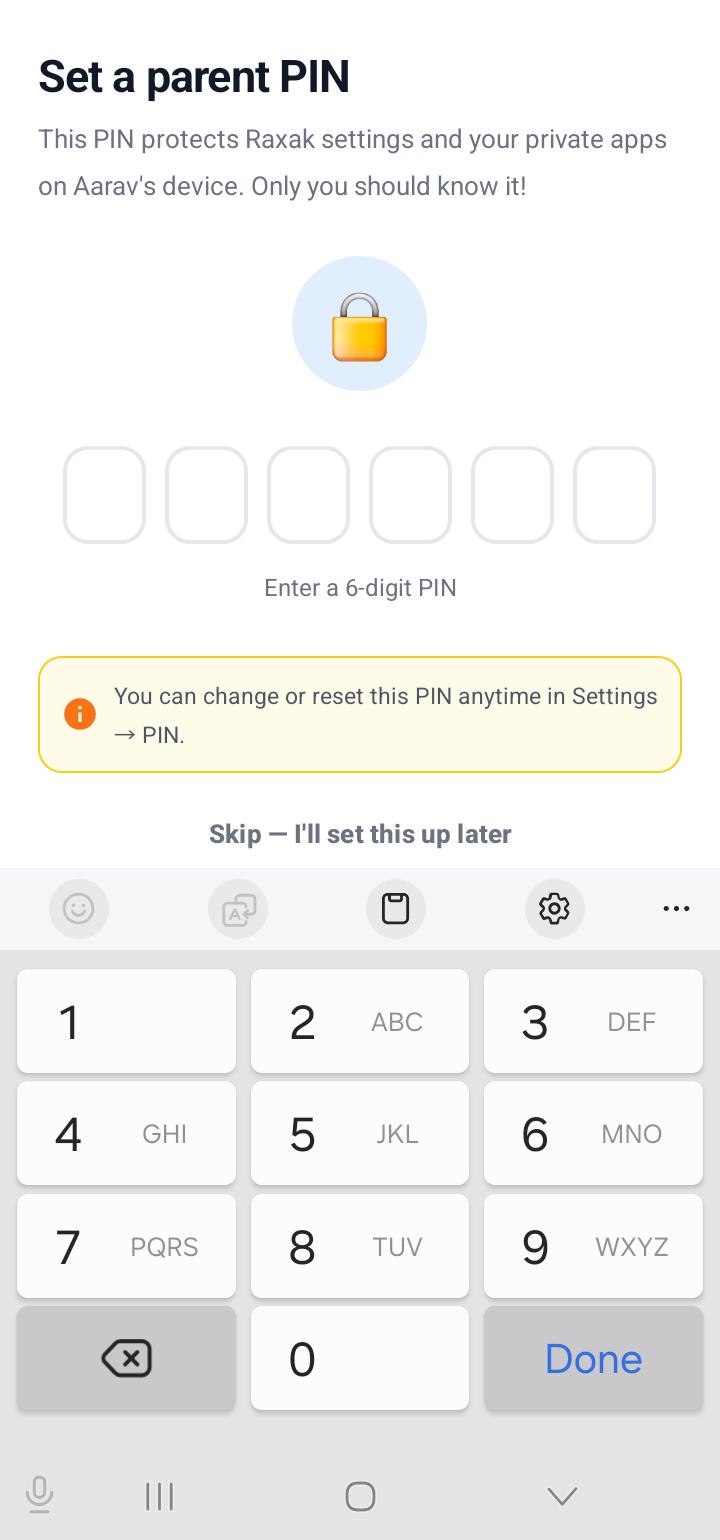
During setup you'll create a 6-digit family PIN. It's what makes the boundaries stick โ it is required to:
Forgot your PIN? You can reset it after re-verifying with your Google account or phone number. Every reset notifies the family, and a cooldown prevents rapid repeat resets on a shared phone.
From Google Play, as usual.
On the sign-in screen. The second parent signs in with their Google account.
Generate a code from the first parent's app (Family screen), enter it on the new phone, and approve the request. Both parents now see and manage the same family.
Then let the data build for a week โ the first usage report and Wellness Score get meaningful fast.
Install Raxak, see your own screen time today, and connect your child when you're ready.